Connect your GoHighLevel to Clover.
You have one job, and it takes about 3 minutes: add us as a staff member. We build everything else inside your account and send you a video when it's done.
1Add us to your GoHighLevel
You do this, ideally while you're still on the call with us.
We work inside your own account, so you own everything we build and can see it all. To get in, we need a staff login.
Open Settings, then My Staff
Settings is the gear at the bottom left. My Staff is in the list on the left of the settings page. If you don't see it, you're not an admin. Ask whoever set up your account.
Click Add Employee and fill in our details
Use the exact name and email your Clover rep gives you. Any password is fine, we'll change it on first login. Then click Save.
Set the role to Admin
Before you save, scroll down to User Roles (sometimes it's the next screen). Set User Type to Account and Role to Admin. Admin is what lets us build workflows and fields. A lower role can't.
Tell your rep it's done
That's it. We get an invite email and log in. If GoHighLevel asks for a code when we first sign in, it goes to your phone. Read it to your rep or text it over.
2What we do next
We do this the same day. About an hour. Nothing for you to click.
- We fill in your onboarding form with you on the call. It's 7 quick screens: your firm, the states you're licensed in, your intake hours, how many leads per day, and who gets the alerts.
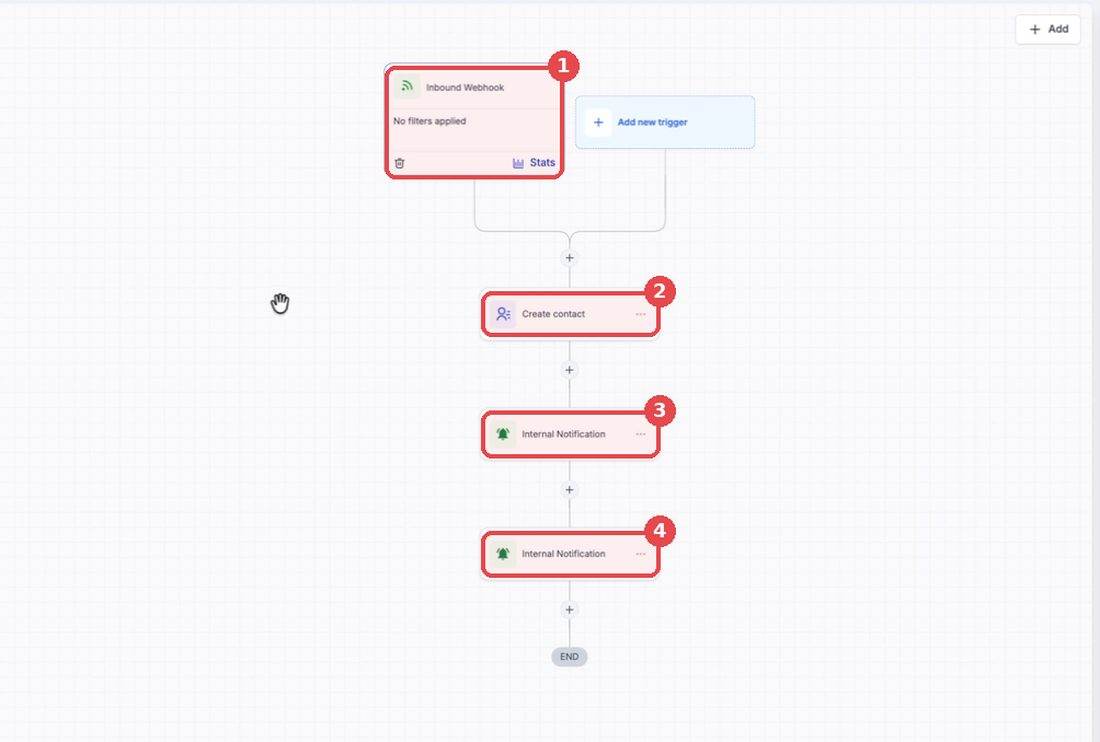
- We build a folder in your account called Clover Marketing. Inside it is one workflow that catches each lead, creates the contact, fills in about 30 fields about their tax situation, and texts your team.
- We push a test lead. You should get a text within a few seconds. The contact shows up as Test Clover.
- We send you a short video walking through exactly what's in your account, so you don't sit on a call for the boring part.
3Launch day
2 minutes to read. Share with whoever answers the phone.
- Leads start on the day and time we agreed, inside your intake hours only.
- Week one runs at a low daily cap on purpose, so we can confirm everything flows before we open the tap.
- Every lead texts your team: "New lead just came in from Clover! Please call ASAP" plus their name and phone.
- They just filled out a long form about their tax debt. They're waiting. Call within 5 minutes.
- Delete the Test Clover contact after launch so it stays out of your reports.
After launch: reading a lead
For your whole team.
Click Contacts, then click any lead. The left panel has two folders that matter.
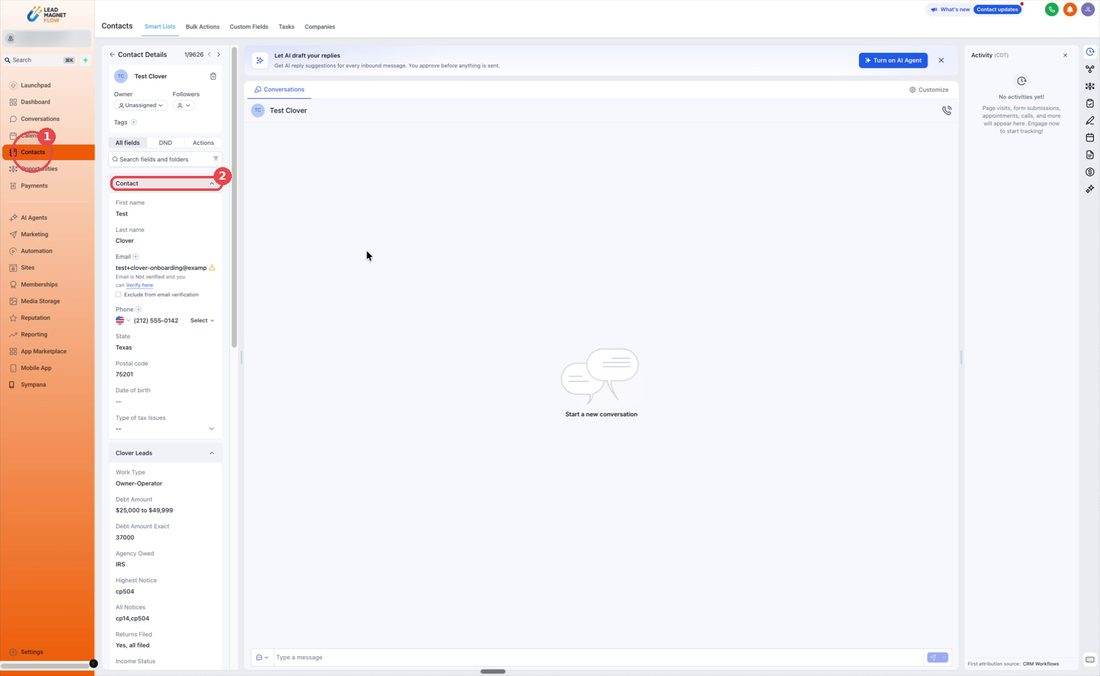
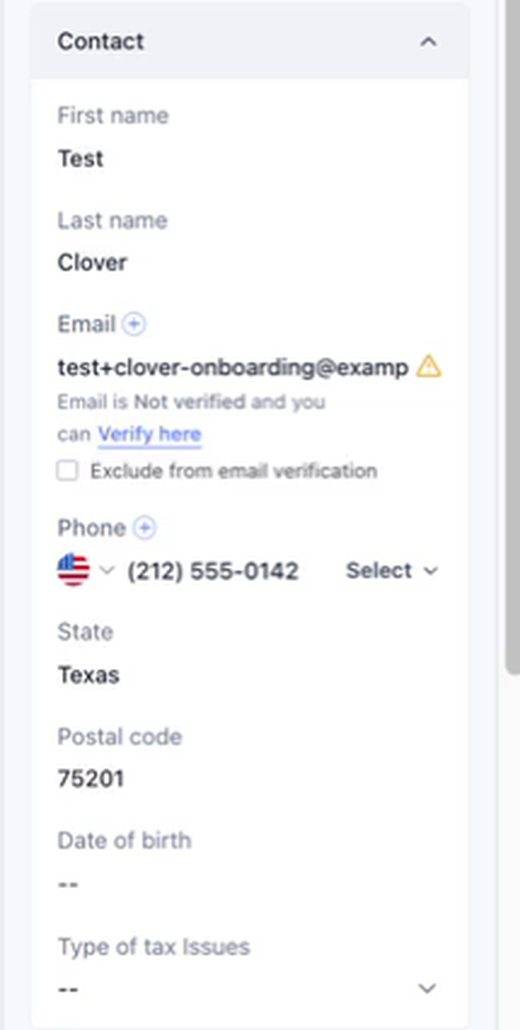
Contact basics
Name, email, phone, state, postal code.
Clover Leads from our funnel
Everything they told us about their tax situation, plus proof of consent and which ad they clicked.
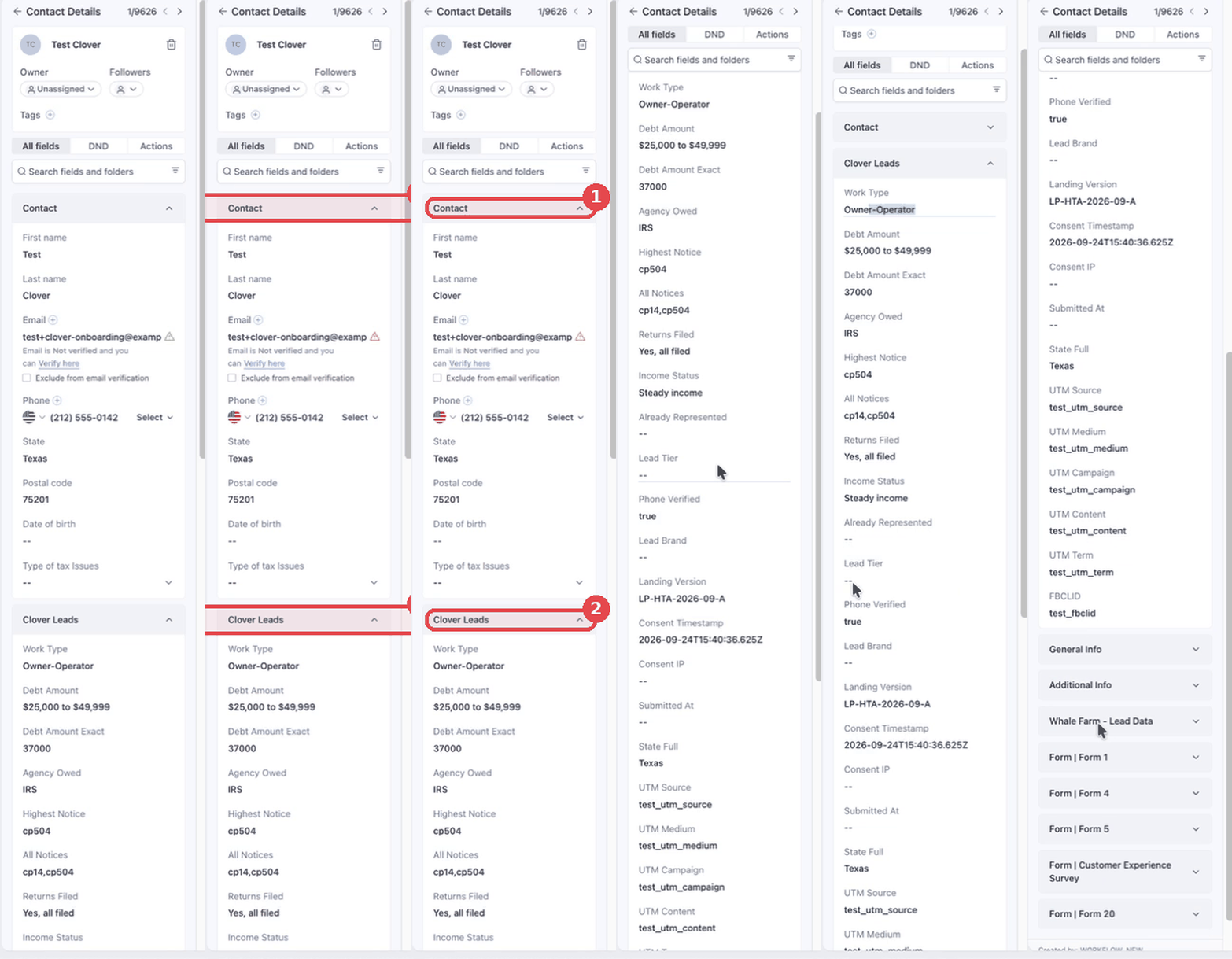 GIF · plays on a loop
What each Clover Leads field means
| Field | What it tells you |
|---|---|
| Work Type | What the person does for work (owner-operator, trucker, nurse, retired…) |
| Debt Amount | The tax debt range they picked, like $25,000 to $49,999 |
| Debt Amount Exact | The exact number they typed, like 37000 |
| Agency Owed | IRS or State |
| Highest Notice | The most serious IRS letter they have, like CP504 |
| All Notices | Every notice they told us about, like CP14, CP504 |
| Returns Filed | Have they filed their returns? Yes / No / Some |
| Income Status | Their income situation, like Steady income |
| Already Represented | Should always be blank. Anyone who already has a tax pro is screened out. |
| Lead Tier | Our internal ranking. You can ignore it. |
| Phone Verified | true means the person confirmed their phone number in the funnel |
| Lead Brand / Landing Version | Which funnel and page version they came through |
| Consent Timestamp / Consent IP | The exact time and IP address when they agreed to be contacted (your TCPA proof) |
| Submitted At | When the form was sent |
| State Full | Their state, spelled out |
| UTM Source / Medium / Campaign / Content / Term | The exact ad, ad set and campaign they clicked |
| FBCLID | Facebook click ID for the ad they clicked |
Think of it as a very long form fill. You have their situation A to Z before you dial: "I see you got a CP504 and owe about $37,000 to the IRS. Let's talk about your options."
Want leads to flow into your own automations?
Tell us which workflow, pipeline stage, or user they should go to and we'll add it after our steps. If you'd rather do it yourself: open the workflow, click the + under the last text alert, pick an action like Add to workflow or Create opportunity, then Save. Add below our steps, never above.
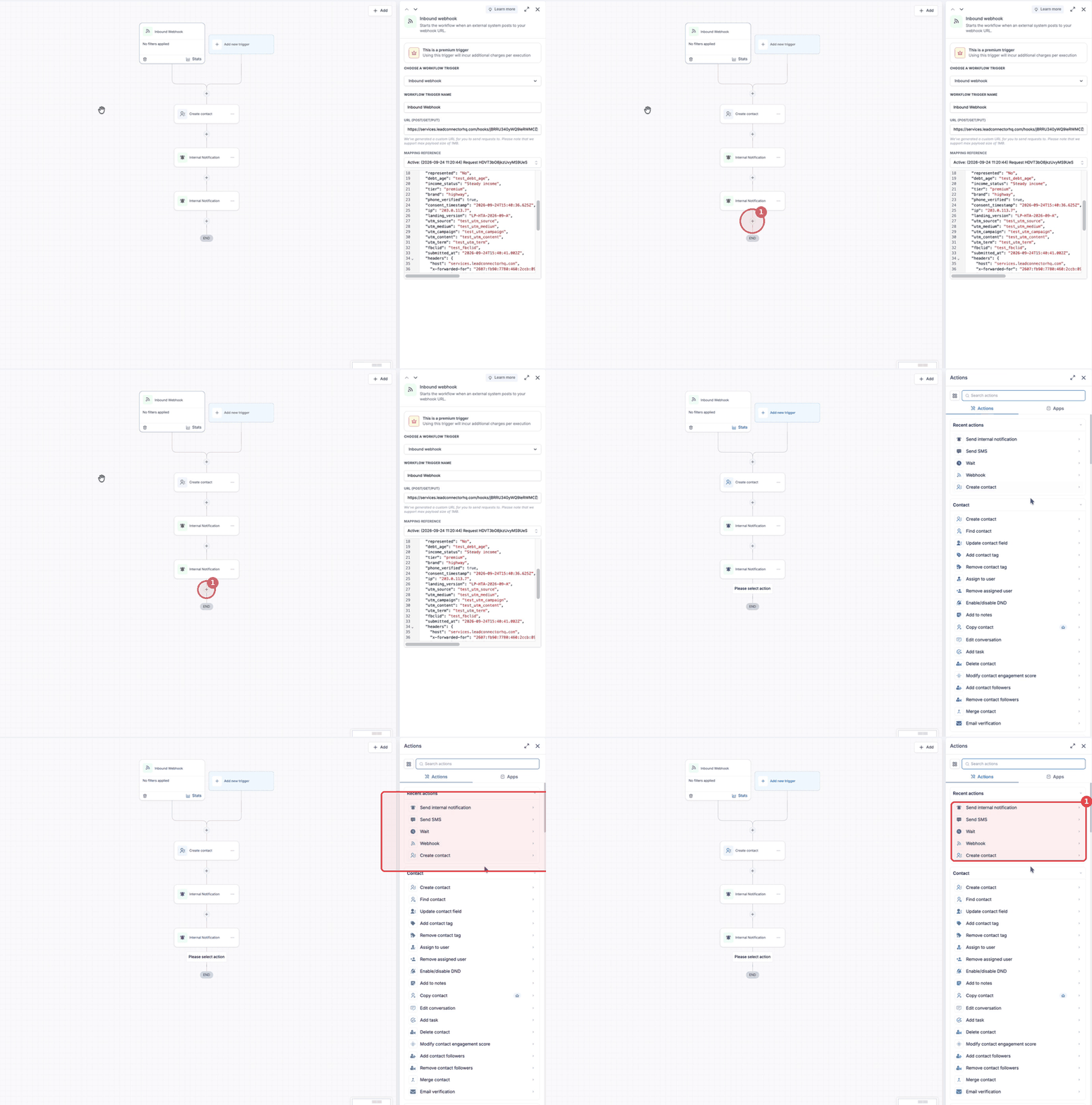 GIF · plays on a loop
Troubleshooting
Most issues are a 2 minute fix. Stuck for more than 10 minutes? Message your Clover rep with a screenshot. We're in your account and can usually fix it faster than explaining it.
I got no text when a test lead came in
Check these in order:
- Open the workflow Initial Contact Creation (see step 3). The switch at the top right must say Publish, not Draft.
- Click Execution logs at the top. If the lead is listed, the webhook worked and the problem is the text step. If it's not listed, the lead never reached GoHighLevel. Tell your Clover rep.
- Open the Internal Notification step. Check the phone number. It must start with +1 and have 10 digits after it.
- Your GoHighLevel account needs a phone number to send texts. Go to Settings›Phone Numbers. If it's empty, buy a number (about $1/month). Texting also needs A2P approval. See Extras.
The lead shows up but most fields say "--"
A "--" means the field is empty. A few are always empty on purpose: Already Represented, Consent IP and Submitted At can be blank on some funnels.
If Work Type, Debt Amount and Agency Owed are also blank, the field mapping got changed. Do not rebuild it yourself. Send your Clover rep a screenshot and we'll fix the map in about 5 minutes.
Leads stopped coming in after they were working
Almost always one of these:
- Someone deleted or renamed the workflow or the Inbound Webhook trigger. Deleting the trigger changes the webhook URL, and our system keeps sending to the old one. Tell us and we'll re-link.
- The workflow was switched to Draft.
- Your GoHighLevel sub-account was paused or moved.
- It's outside your intake hours. We pause delivery outside the hours you gave us.
The same person shows up twice
GoHighLevel matches on phone and email. If a lead used a new email and a new phone, it can create a second contact. Merge them: open one contact, click the three dots, then Merge. If it happens a lot, tell us and we'll turn on stricter matching.
Alerts only go to one person
Each person needs their own Internal Notification step. Open the workflow, click the + under the last notification, choose Send internal notification, set Type to SMS, User type to Custom Number, and paste the number. Click Save action, then Save at the top right.
I want email alerts too
Same idea. Add an Internal Notification step but set Type to Email and pick the user or type an email address. Or ask us during onboarding and we'll add it before launch.
The webhook URL in my onboarding form is wrong or missing
Only the URL inside the Inbound Webhook trigger counts (step 3 shows where it lives). Copy it from there and send it to your Clover rep. Never type it by hand. One wrong letter and every lead bounces.
I clicked something and now the workflow looks different
Do not press Save. Click the browser back button or close the tab. GoHighLevel keeps the last saved version. If you already saved, tell us. We keep a copy of the build and can restore it quickly.
Extras worth setting up
Not needed for launch. Each one makes the leads work harder for you.
Get your texting approved (A2P / 10DLC)
US carriers block business texts from unregistered numbers. In GoHighLevel go to Settings › Phone Numbers › Trust Center and complete the registration. It takes a few days to approve, so start before launch day. Without it, your alert texts and any texts to leads may silently fail.
Turn on the mobile app
Install the LeadConnector app (or your white-label app) and log in. Turn on push notifications. You'll get a buzz for every new lead and can call back from your phone in seconds.
Speed to lead is everything
These leads just filled out a long form about their tax debt. They're waiting. Call within 5 minutes and your contact rate roughly doubles. Set a team rule: first person to see the text calls.
Put every lead in a pipeline stage
Ask us to add a Create opportunity step after Create contact. Each lead lands in your pipeline as "New Lead" so nothing gets lost in the contact list.
Assign leads to a closer automatically
Add an Assign to user step. Pick one person, or turn on round-robin to split leads between your team evenly.
Send a first text to the lead
You can add a Send SMS step that texts the lead right away ("Hi {first name}, this is Kirk from Triumph. I'm calling you now."). You have their consent, and the Consent Timestamp field is your proof. Keep it short and sign it with a real name.
Add a tag and a smart list
Add an Add contact tag step with the tag clover. Then build a smart list filtered by that tag so you can see only Clover leads in one click.
Do not rename or delete our folders
The Clover Leads field folder and the Clover Marketing workflow folder are wired to our system. Renaming a field or deleting the trigger breaks delivery. Add your own stuff below ours instead.
Keep your TCPA records
If a lead ever claims they didn't agree to be contacted, send us their name and phone. Every field in the Clover Leads folder plus our funnel records lets us rebuild the full consent trail in about a minute.
Want a full nurture built?
We offer full CRM builds: 90 to 180 day follow-up sequences, appointment reminders, and no-contact drips. It's a separate charge. Ask your rep if you want a quote.